
GTA 5 landed on PC back in 2015, and it still makes plenty of computers sweat. Take a helicopter over Blaine County with grass on Ultra and the frame counter falls apart in seconds. Stutter on a busy RP server is even worse, because it always seems to hit right when someone starts shooting.
You don’t always need a new graphics card to fix this. The right GTA 5 mods, plus some honest work in the settings menu, can give you a noticeable GTA 5 FPS boost on the hardware you already own. Below are the mods worth trying, how to install them without breaking anything, and the settings that eat the most frames. Most of it applies to story mode and FiveM alike.
Why GTA 5 Still Struggles on Some PCs
Quick refresher. FPS is the number of frames the game draws every second. At 30 the game is playable but sluggish, and fast driving gets choppy. Around 60 is where GTA 5 starts to feel right. On a 144 Hz monitor you’ll want 120 or more, and in gunfights you’ll feel how much quicker the game reacts to your mouse.
So why is a game this old still so demanding? Because it streams a huge open world in real time. Trees, grass, traffic, pedestrians, shadows and reflections keep loading around you as you move. The graphics card does most of the visual work, but the processor has to keep track of every car and NPC nearby. That’s why a weak CPU can hold back a perfectly decent GPU.
FiveM piles even more on top. Most roleplay servers stream their own cars, clothes, custom maps and scripts, so a PC that handles story mode fine can start stuttering the moment it joins a packed server.
GTA 5 Mods Worth Installing for Better FPS
Not every graphics mod is an FPS mod. Big overhauls like NaturalVision Evolved or QuantV are made for great screenshots, and they cost frames. The mods below go the other way. They either change the look without adding much load, or they cut things your PC doesn’t really need to render.
Five Redux
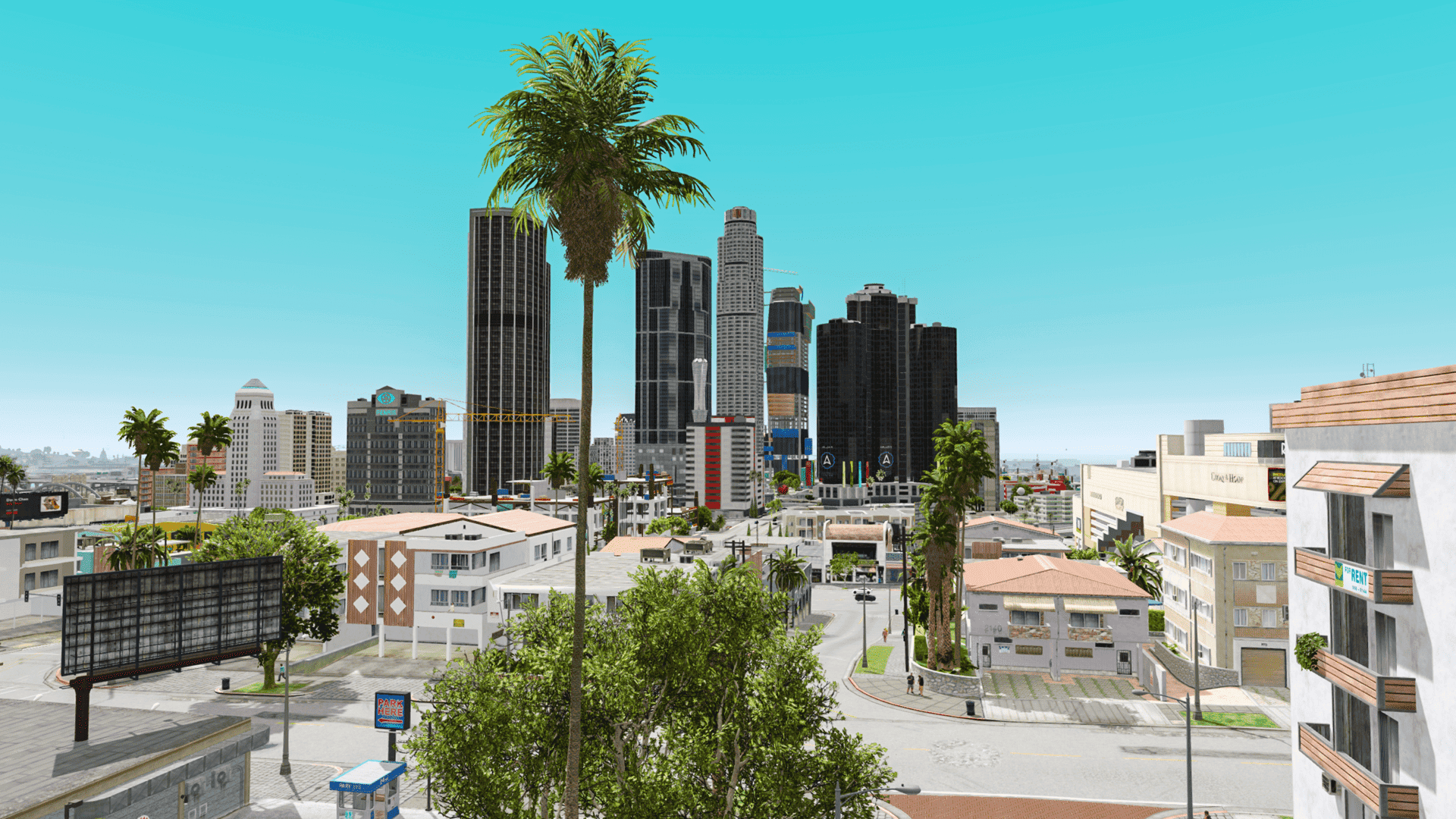
Five Redux is a free graphics mod from ModsHub that works in GTA 5 and on FiveM. You get cleaner colors and better lighting without turning your GPU into a space heater. There are three presets (Shiny, Dusky and Juicy), so you can pick a mood instead of living with one fixed look.
It’s a good first install for a low-end PC. Put it on, check your frame rate, and only then decide if you want something heavier.
Grove Graphics
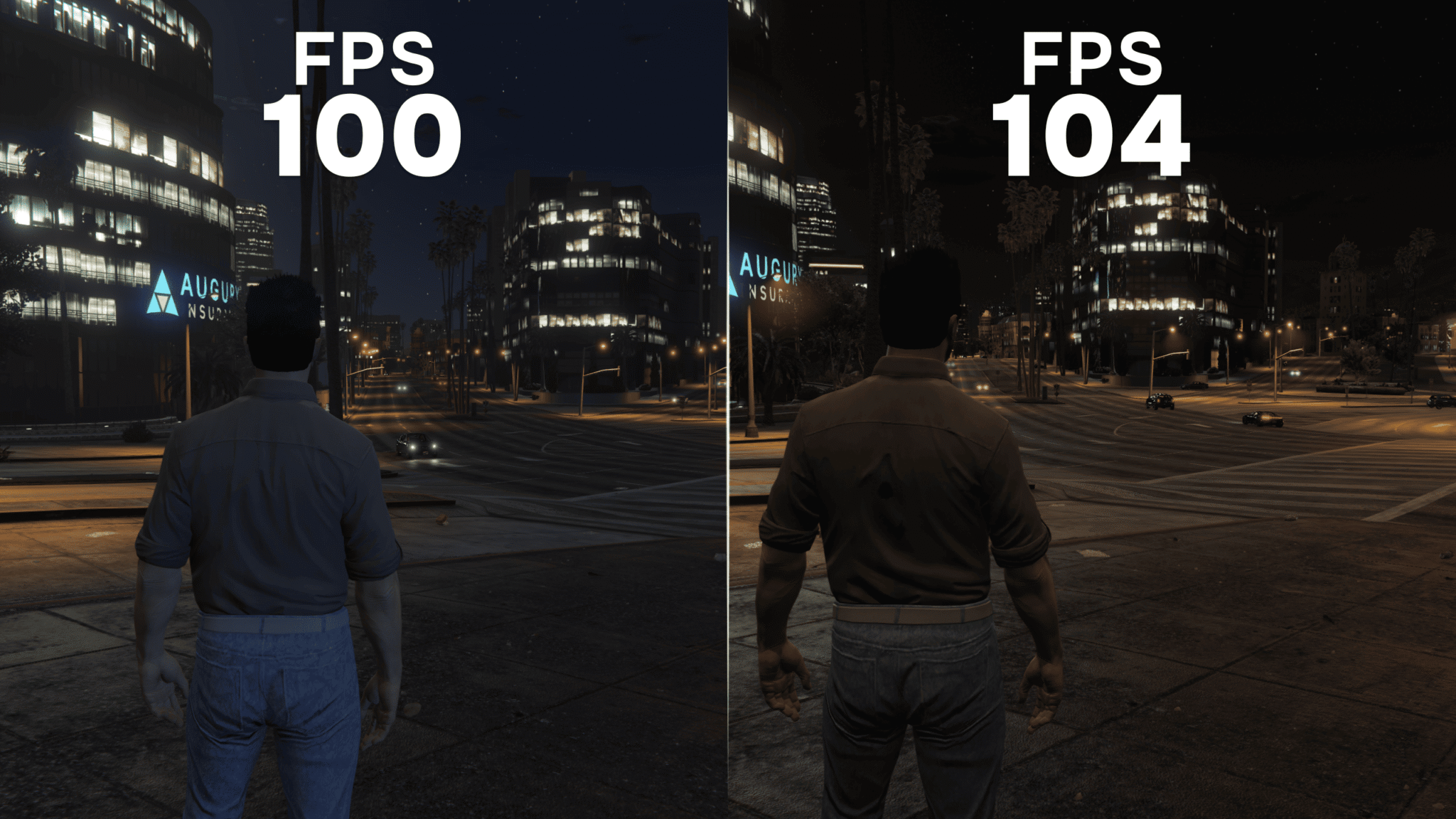
Grove Graphics is aimed at hood RP and PvP players. If the name makes you think of Grove Street, you’ve got the idea. ModsHub says it can add up to 30 FPS, and it’s server-legal, with no gameplay advantage over other players. That part matters if you don’t want trouble with admins.
You can pick from three presets:
-
Vanilla is the simple one. Sharp picture, no extras, good for fast street fights.
-
Moderate is for people who like realism. Balanced colors, nothing oversaturated, and it still runs well on weaker machines.
-
Ultimate strips the most, fog included, so the picture stays clear when things get chaotic.
Grass and Vegetation Density Mods
Grass is one of the heaviest things GTA 5 renders, and there’s a whole category of mods that simply thin it out. You’ll find plenty on GTA5-Mods.com and Nexus Mods. The downside is easy to guess: hills and fields look a bit emptier. If you spend most of your time in the city or on RP servers, you’ll barely notice. Your frame rate will.
PvP Modpacks From ModsHub
If you mostly play PvP, a modpack saves you from hunting down ten separate files. ModsHub’s packs mix visual changes with performance cuts. Depending on the pack, that can mean lighter shadows, simplified business interiors, no rain or snow, fewer heavy particles and no bullet holes or cracks left on surfaces.
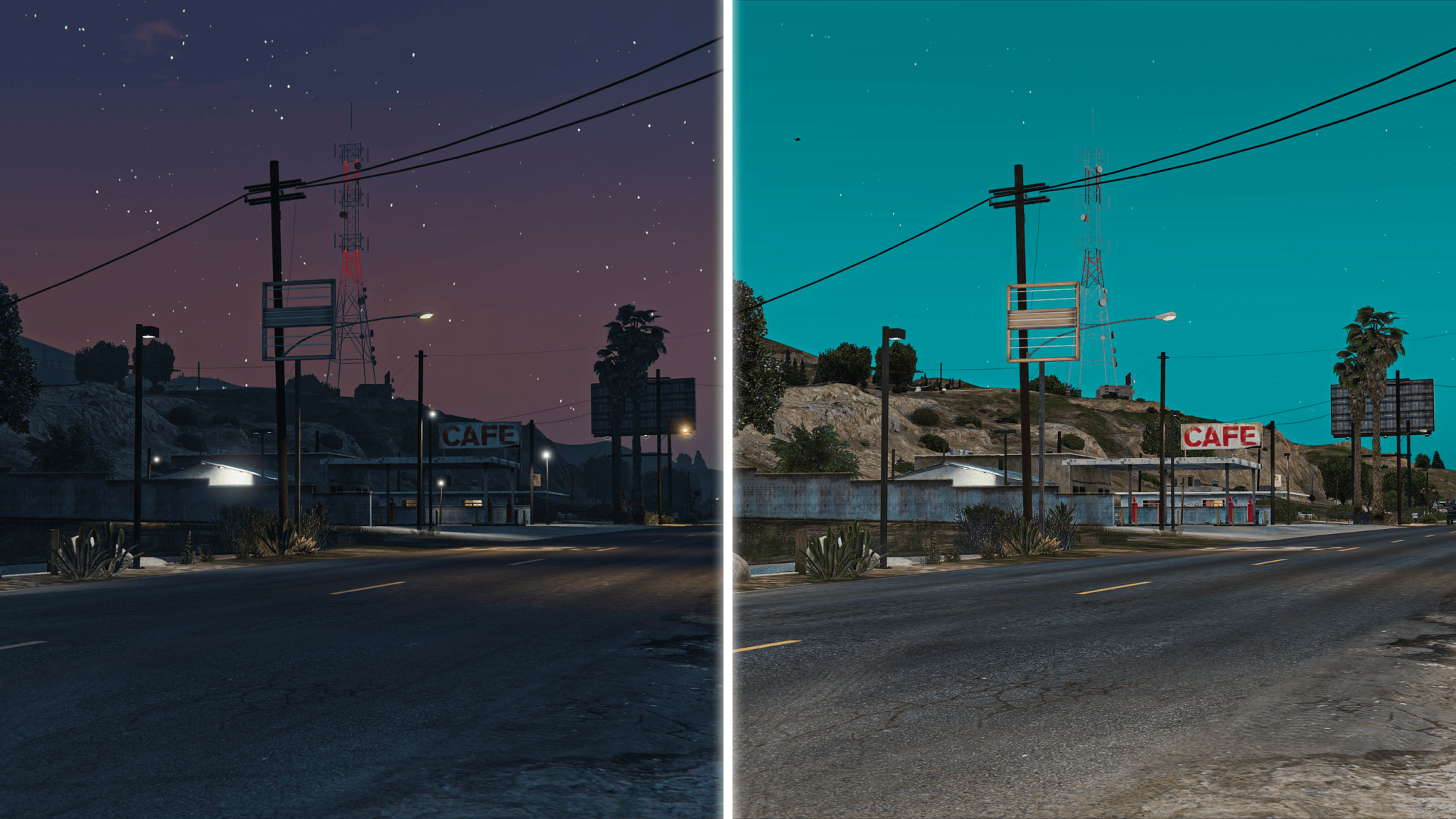
Nocturnal PVP Modpack keeps the game at night for good, with animated stars and lighting tuned for gunfights. It also brings thin tracers that don’t block your view, deep blue hit effects, black weapons with a bold white outline and a minimap that shows your health as a number.
Shadow Modpack Pro is the darker option. Every shot leaves black and purple smoke, and glowing tracers make it easier to see where your bullets land. There’s a Lite version too.
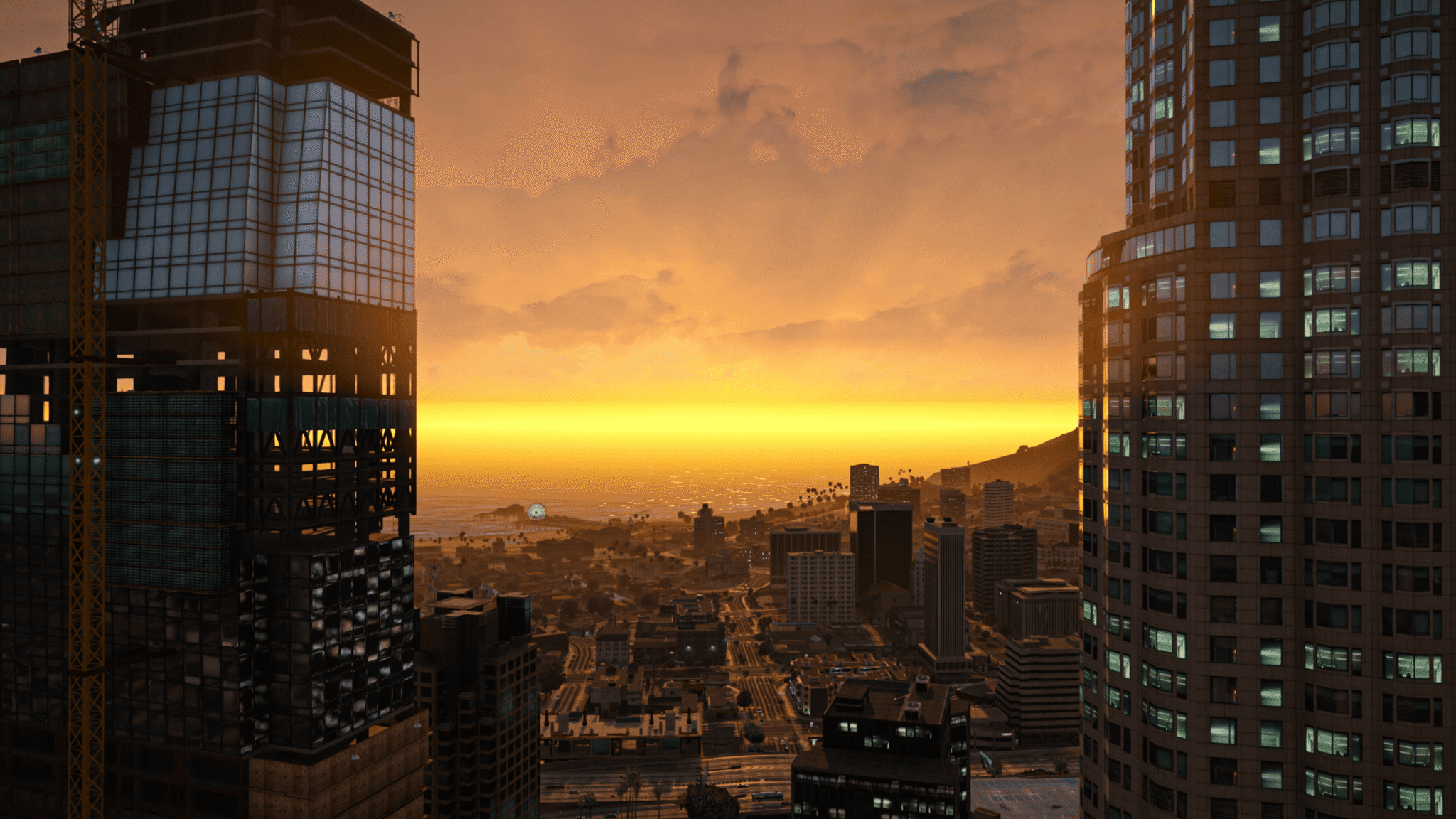
West Coast Redux Pro leans toward realism: detailed weapon models, precise tracers, fresh hit effects, bright emergency lights, clean street lighting and weapon sounds with real punch. It’s tuned to keep the frame rate stable, so the upgrade doesn’t cost you FPS.
How to Install GTA 5 FPS Boost Mods by Hand
Manual install isn’t hard, but skipping steps is how people break their game.
Start with a backup. Copy your GTA 5 folder somewhere safe, or at least the files the mod will replace. While you’re at it, note your FPS in one busy spot so you have something to compare with later.
For story mode you’ll need OpenIV. Use its mods folder so the original game files stay untouched, then put the mod files where the readme says. Script Hook V is only needed for script mods, and most graphics mods don’t use it. One rule: never take a modded install into GTA Online. Rockstar runs anti-cheat there, and bans do happen.
FiveM works differently. It doesn’t modify your GTA 5 installation at all, so client-side mods go into FiveM’s own folder (FiveM Application Data), usually the mods subfolder. Check your server’s rules first, since some servers block client mods completely. Also, FiveM for GTA V Enhanced, in early access since July 2026, blocks client-side graphics mods for now. On FiveM, these packs are a Legacy thing at the moment.
Once everything is in place, launch the game and go back to the same spot. If neither the picture nor the number changed, the mod probably isn’t loading.
The Shortcut: ModsHub
If folders and readme files aren’t your thing, ModsHub does the file work for you. It’s a Windows mod manager for GTA 5 and FiveM, free to download, and it doesn’t need OpenIV.
-
Download the app from modshub.io and sign in.
-
Show it where GTA 5 is installed.
-
Open the library, preview a mod and click Install.
-
Restart the game.
You can also combine mods into your own pack and switch between looks quickly. The FiveM rule still applies: client mods only where the server allows them.
Settings That Give You Free Frames
Mods help, but the settings menu often gives you more. Here’s where I’d start, roughly in order of impact:
-
Drop Grass Quality from Ultra to High or Normal. On most PCs that’s one of the biggest jumps you’ll get.
-
Turn off MSAA and use FXAA instead. Reflection MSAA can go too.
-
Set Shadow Quality to Normal or High, then switch off Long Shadows and High Resolution Shadows in Advanced Graphics.
-
Lower Population Density and Distance Scaling, and keep Extended Distance Scaling at zero. More traffic and more detail far away means more work for the CPU, which is often the real bottleneck on busy servers.
-
Population Variety mostly eats video memory, so lower it if your card has 4 GB or less.
-
Keep Post FX on Normal or High and set Motion Blur Strength to zero.
-
Still not enough? Try a lower Frame Scaling Mode, like 3/4 or 5/6. The game renders at a lower resolution and looks softer, but on an old laptop that can be the difference between playable and not.
Watch the video memory bar at the top of the Graphics menu, too. Go past your card’s limit and stutter usually follows.
If you own GTA 5 on PC, you also get the Enhanced edition as a free upgrade. It supports DLSS 3 and FSR 3, and upscaling can give you more frames than any mod, as long as your PC meets its higher requirements (at least 8 GB of RAM and 4 GB of video memory). FiveM Legacy still needs the Legacy version, though.
Outside the Game
A few boring things that still count. Update your NVIDIA or AMD drivers. Close the browser with forty open tabs, overlays you don’t use and anything syncing in the background. And switch Windows to its best performance power mode, especially on a laptop, where it often sits on a power-saving profile.
Where to Start
If you want a simple plan, fix grass, MSAA and shadows first. Then add one light mod like Five Redux or Grove Graphics and compare the numbers. Only then add anything else. Throwing five GTA 5 mods in at once and hoping for the best is a reliable way to end up with a slower game than you started with.
And if you’d rather skip the file work altogether, let ModsHub handle the installs and spend that time playing instead.
 Ask Syrelia Xelvaris how they got into game reviews and strategies and you'll probably get a longer answer than you expected. The short version: Syrelia started doing it, got genuinely hooked, and at some point realized they had accumulated enough hard-won knowledge that it would be a waste not to share it. So they started writing.
What makes Syrelia worth reading is that they skips the obvious stuff. Nobody needs another surface-level take on Game Reviews and Strategies, Community Events and Tournaments, Player Stats and Achievements. What readers actually want is the nuance — the part that only becomes clear after you've made a few mistakes and figured out why. That's the territory Syrelia operates in. The writing is direct, occasionally blunt, and always built around what's actually true rather than what sounds good in an article. They has little patience for filler, which means they's pieces tend to be denser with real information than the average post on the same subject.
Syrelia doesn't write to impress anyone. They writes because they has things to say that they genuinely thinks people should hear. That motivation — basic as it sounds — produces something noticeably different from content written for clicks or word count. Readers pick up on it. The comments on Syrelia's work tend to reflect that.
Ask Syrelia Xelvaris how they got into game reviews and strategies and you'll probably get a longer answer than you expected. The short version: Syrelia started doing it, got genuinely hooked, and at some point realized they had accumulated enough hard-won knowledge that it would be a waste not to share it. So they started writing.
What makes Syrelia worth reading is that they skips the obvious stuff. Nobody needs another surface-level take on Game Reviews and Strategies, Community Events and Tournaments, Player Stats and Achievements. What readers actually want is the nuance — the part that only becomes clear after you've made a few mistakes and figured out why. That's the territory Syrelia operates in. The writing is direct, occasionally blunt, and always built around what's actually true rather than what sounds good in an article. They has little patience for filler, which means they's pieces tend to be denser with real information than the average post on the same subject.
Syrelia doesn't write to impress anyone. They writes because they has things to say that they genuinely thinks people should hear. That motivation — basic as it sounds — produces something noticeably different from content written for clicks or word count. Readers pick up on it. The comments on Syrelia's work tend to reflect that.